Run race day
You've built the plan, assigned stints, drivers signed up. Race day. Here's your checklist.
Final pre-race check
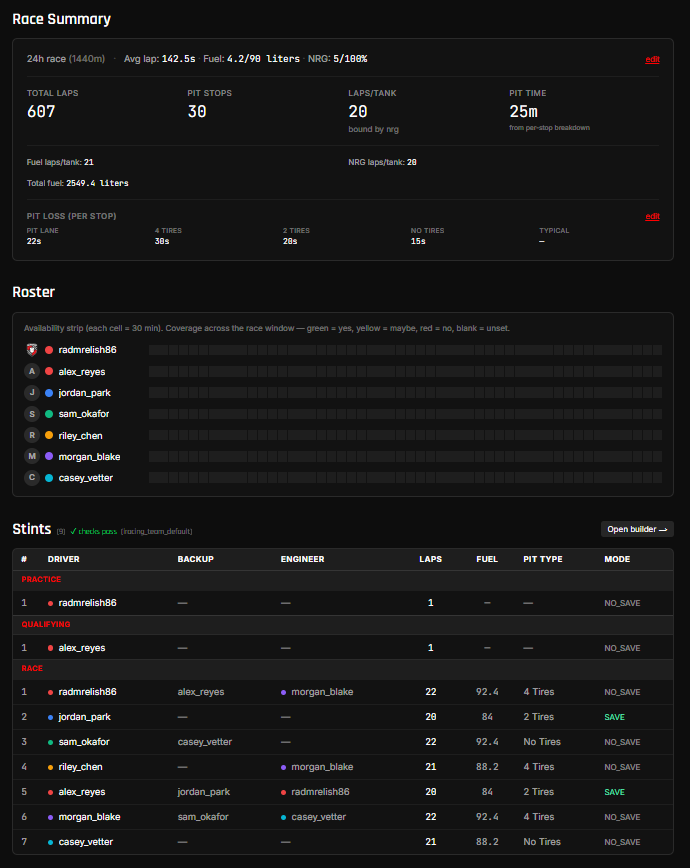
The morning of the race, open the plan detail page and verify:
- Event start (server opens) is correct in your local time (we render in your timezone — drivers see it in theirs).
- All stints have a primary driver — gaps appear as warnings under the Stints section header.
- Validation badge is green. The Stints section header shows
✓ checks pass ({ruleset})when the plan satisfies the ruleset. Orange warnings appear below the header listing any drivers who are over- or under-allocated per the ruleset's fair-share rule. Reorder or reassign in the stint builder (drag-to-reorder) to clear them. - Fuel + NRG projection looks right — laps per tank, total stops, total pit time. If something looks off, the inputs are wrong, not the math.
- The right variant is active. If you've drafted alternate plans (variants), make sure the ● in the variant picker is on the strategy you intend to race. Race-day countdown, push-DM stint reminders, and the public share link all read the active variant. Switching variants in the picker on race-day is planning-only — you have to hit Make active to commit.
Share the plan with drivers
Drivers don't need to log in for race day — they can use the share link.
- On the plan detail page, click Share (Owner or Admin only).
- The modal pops open and auto-mints a share URL:
https://stintiq.app/r/abc123... - Click Copy, then paste the URL in your team's Discord channel.
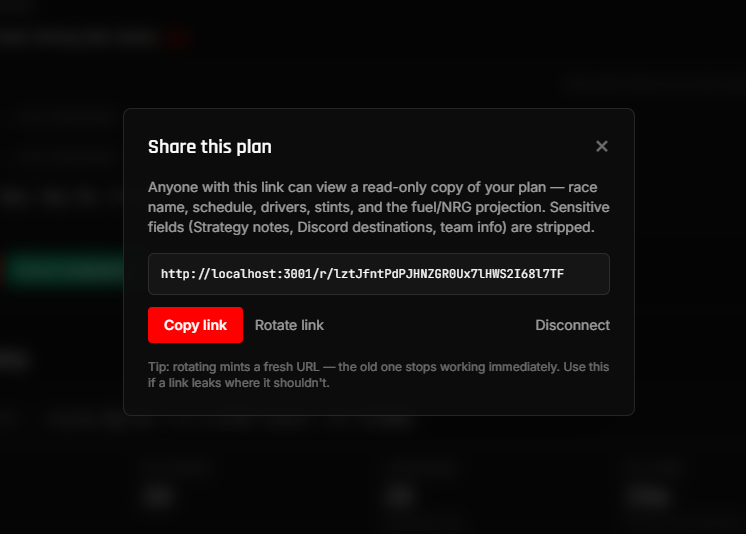
Drivers open the URL on phone or laptop. Public; no login required. Read-only — they can't edit the plan.
If you need to invalidate the link (e.g., it leaked to the wrong server), click Disconnect. The next click of Share mints a fresh URL.
During the race
Most of race day runs itself once everything is set up. What happens automatically:
- Server-open DMs fire to anyone with any stint assignment on the plan at T-30 / T-15 / T-5 minutes before the captain's published Event start (server opens) time. Generic "Server opens in N min" wording so everyone knows when to load in.
- Qualifying-prep DMs replace the generic at T-15 and T-5 for the driver assigned to qualify (the primary driver of any Qualifying-typed stint). Wording tells them they're up to qualify.
- Stint reminders fire T-30 / T-15 / T-5 before each Race stint after the first one. The stint-1 driver doesn't get duplicates — the server-open DM covers that race-start context.
- Engineers assigned to a stint also get the stint reminders (labeled clearly so they know they're on comms, not driving).
- The race-day mobile view (the
/race/{plan_id}page) shows a live countdown to each driver's next stint.
Check who has confirmed
Reminder DMs now carry two buttons — ✅ I'm ready and ⚠️ I can't make it — so you find out about a no-show while there's still time to do something about it, instead of at an empty seat on green.
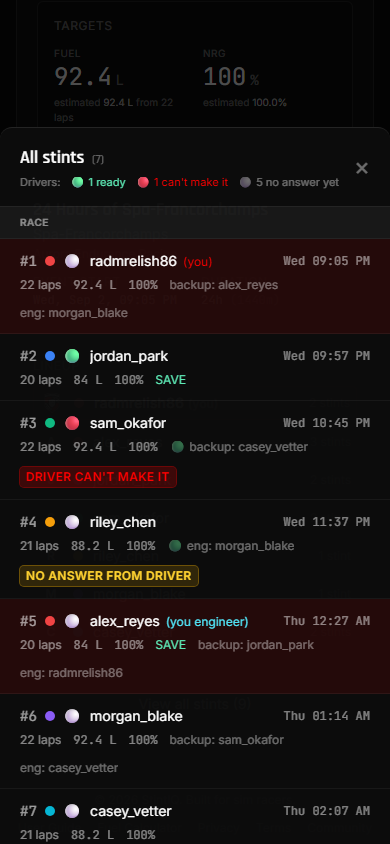
Open the race-day view (/race/{plan_id}) and tap View all stints to see the board.
The summary line at the top answers the question you actually ask an hour out — who
hasn't answered yet?
Reading the board:
- 🟢 ready — they pressed the button.
- 🔴 can't make it — a red DRIVER CAN'T MAKE IT badge. You'll also get a DM the moment it happens, and the stint's backup is asked directly.
- ⚪ no answer yet — nobody has responded. This is the normal state hours out, so the board stays quiet until someone actually answers.
Two things worth knowing:
- The counts are drivers only. A stint whose engineer has confirmed but whose driver hasn't still counts as no answer — and shows an amber NO ANSWER FROM DRIVER badge, so a green engineer never reads as an all-clear for the seat.
- Changing the driver on a stint resets that slot to unconfirmed. The new driver is asked by their own reminder; the old driver's answer never carries over to someone else.
When a driver can't make it
You get a DM as soon as someone declines, and the stint's backup is DMed at the same time with their own ✅ I can take it button — the cascade doesn't wait on you, because captains are often in the car themselves. Their answer comes back to you the same way.
Nothing on the plan changes automatically. StintIQ won't silently swap your lineup at 2am, and drivers who said they couldn't make it do sometimes turn up. When you're ready to make it official, use ↑ Promote backup in the stint builder.
If the original driver changes their mind and presses ✅ again, you're told and the backup is sent a "stand down" DM — so you never end up with two people preparing for one seat.
Press the Green Flag when the race goes green
When the green flag actually drops, anyone on the team can press the 🏁 Press Green Flag button on the race-day view (or the plan detail page). A confirm modal asks "Are you sure?" — confirm and the race timer locks at that moment.
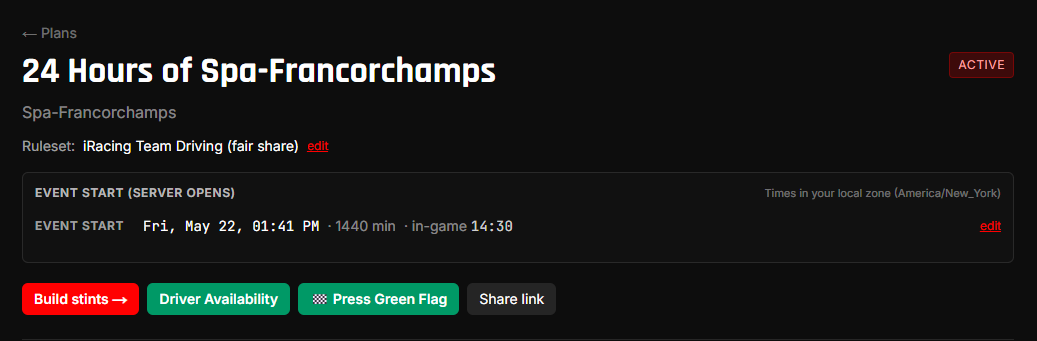
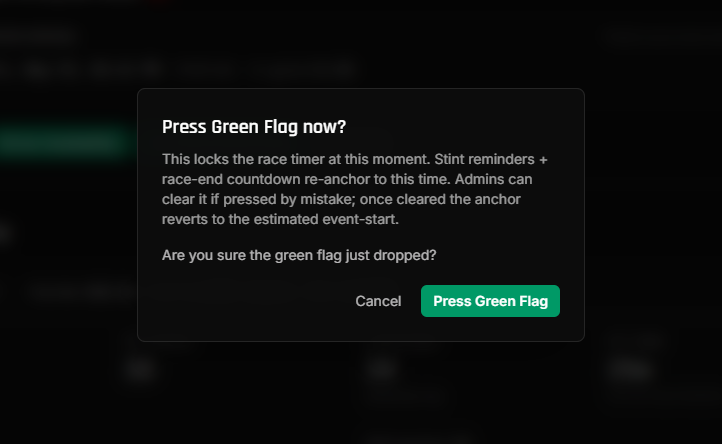
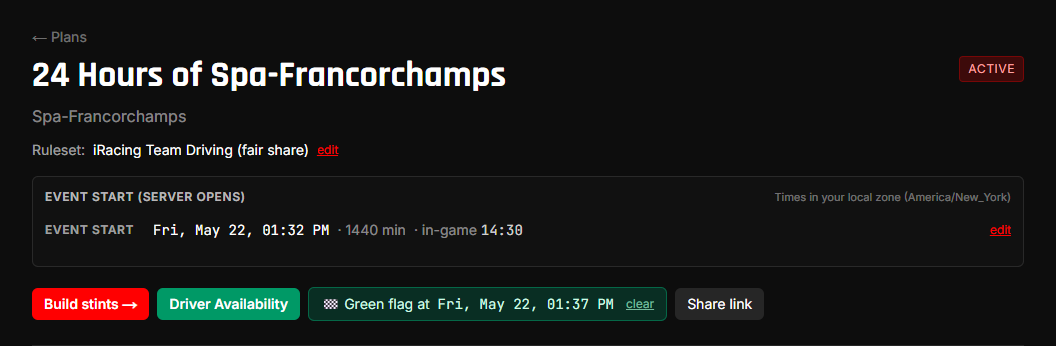
Why this matters: until the button is pressed, the race anchor is the captain's estimated lights-out time (the server-open time the captain entered). After Green Flag is pressed, future stint reminders re-anchor to the actual lights-out moment, so drivers see correct countdowns regardless of formation-lap variation between sims and series.
If someone fat-fingers the button (presses too early), an Owner or Admin can click clear next to the green-flag badge to revert and re-press when the race actually goes green.
If a driver is unavailable last-minute, you can re-assign their stint to their backup using the ↑ Promote backup button in the stint builder. The bot's DMs flow to the new primary driver automatically on the next tick.
After the race
The plan stays in your archive — /teams/{your-team-slug}/plans lists all plans, sorted by race date.
To remove the plan entirely, use Delete plan in the Danger Zone at the bottom of the plan detail page (type the race name to confirm — cascade is destructive).
Next steps
You're done with the race-day workflow. Build another plan, or browse the Reference section for deeper dives.
Have questions? Join our Discord →