Set up your team
If you're starting from scratch, the first thing to do is create a team. A team is the unit that holds your race plans, your roster, and your race-day settings.
Create the team
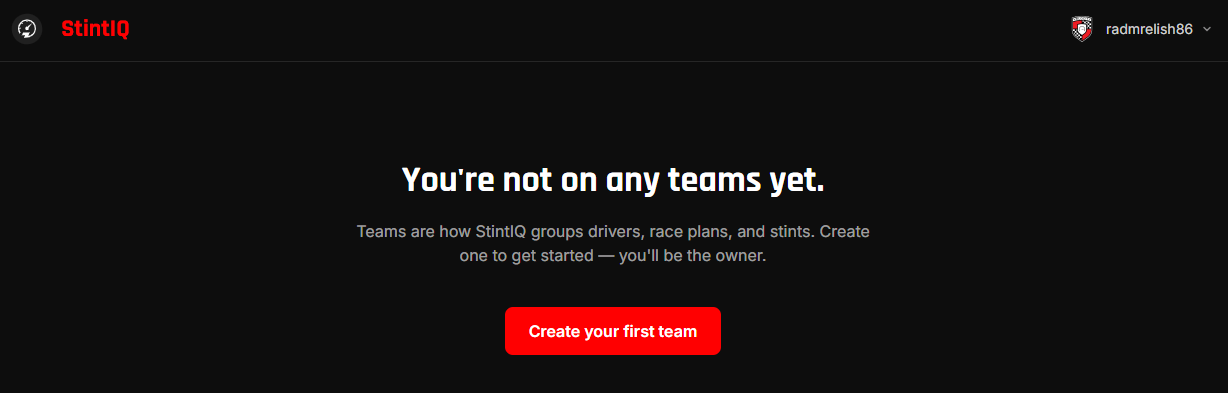
From the home page after you sign in, click Create your first team (or the + New team button at the top of /teams if you already have others).
You'll see a short form with three required fields:
- Team name — your team's public name. Shown on share links and on the Discord bot's
/team showcommand. Most teams use their league handle plus a clarifier, e.g. "Apex Endurance — IMSA 2026" or "Aldea Velocity GT3." - Sim — pick the primary sim your team races (ACC, iRacing, LMU, etc.). This drives the default rulesets we pre-fill on plans plus the fuel-unit defaults.
- Rating system — which skill rating you'll track per driver (iRating, ACC SA, ACC RR, LMU, or Custom). You can change this later if your league switches sims.
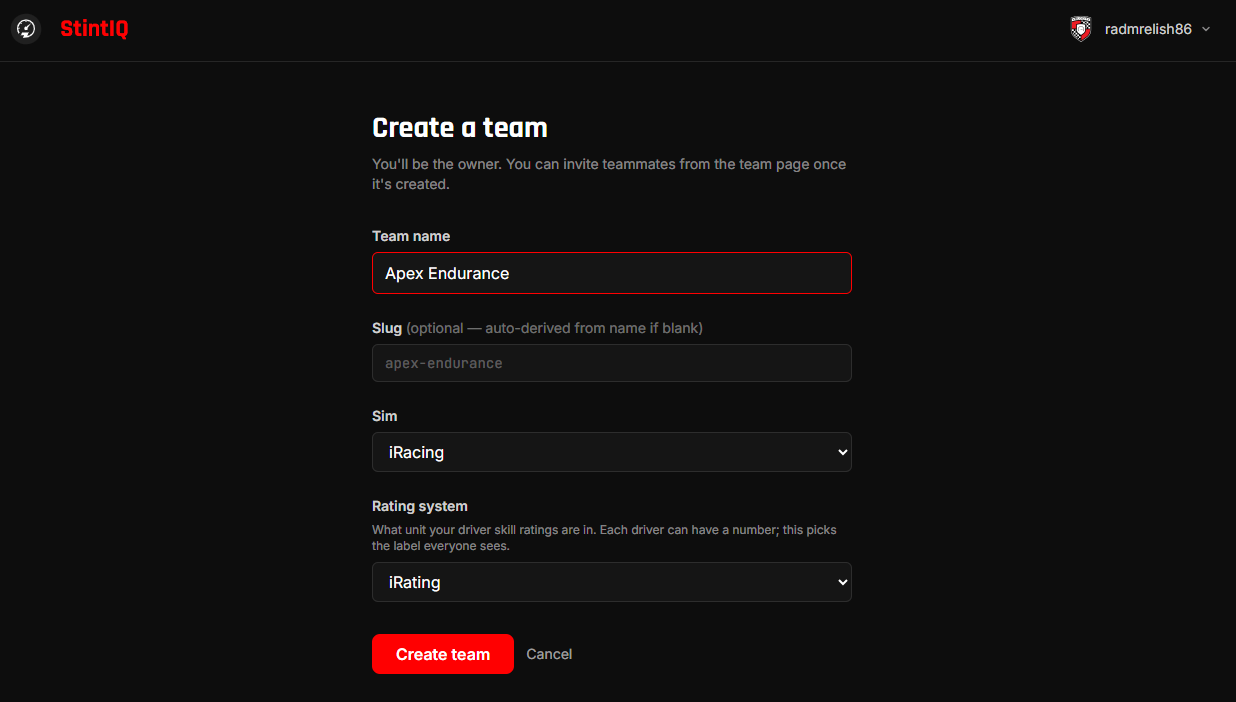
Click Create team. You'll land on the team detail page as the Owner.
What you get
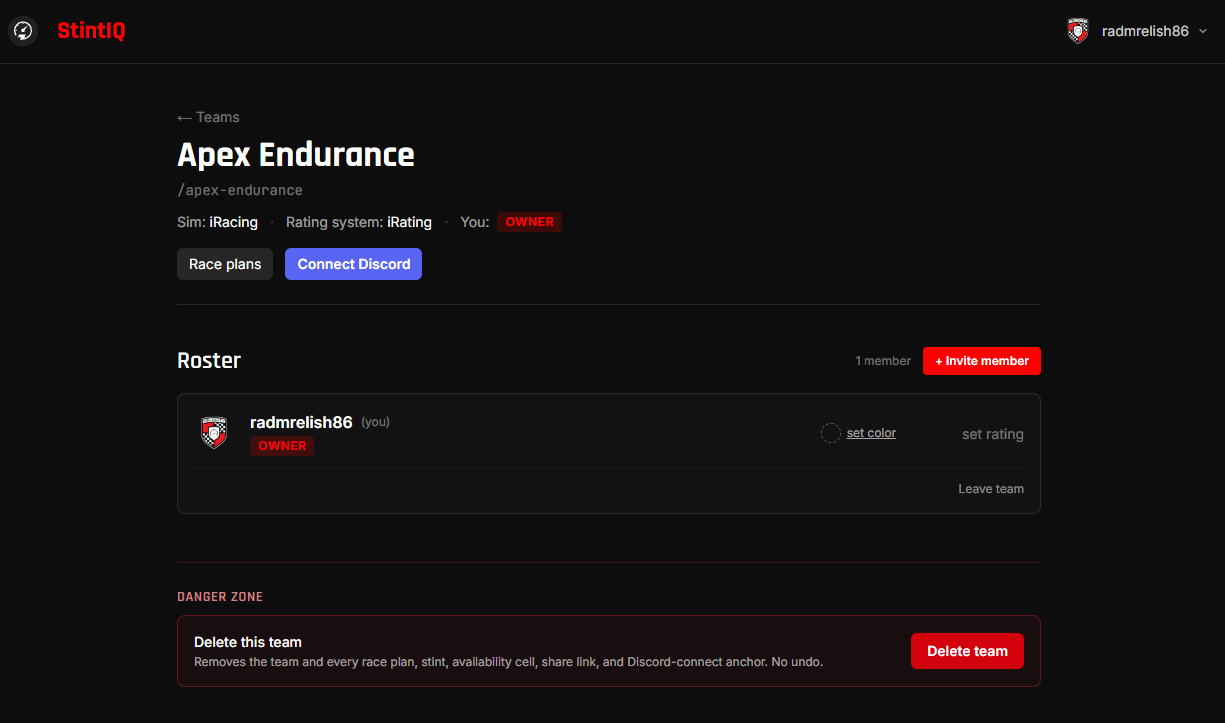
The team detail page (/teams/{your-team-slug}) is your home base. You'll see:
- The team header — name, slug, sim, rating system, and your Owner badge.
- The roster — just you for now.
- A Race plans link (no plans yet).
- An + Invite member button.
- A Connect Discord button (for wiring up race-day DMs — covered in the Reference section).
Next steps
- Build a race plan — Set up the race you're planning for.
- Invite drivers and engineers — Share an invite link so teammates can join.
- Connect Discord — Wire up your team's Discord server so race-day push DMs work.
Have questions? Join our Discord →