Sign up for availability
Once you're on a team and your team admin has set up a race plan, you'll see a signup grid — half-hour windows from before the race starts until after it ends. Sign up for the windows you can drive.
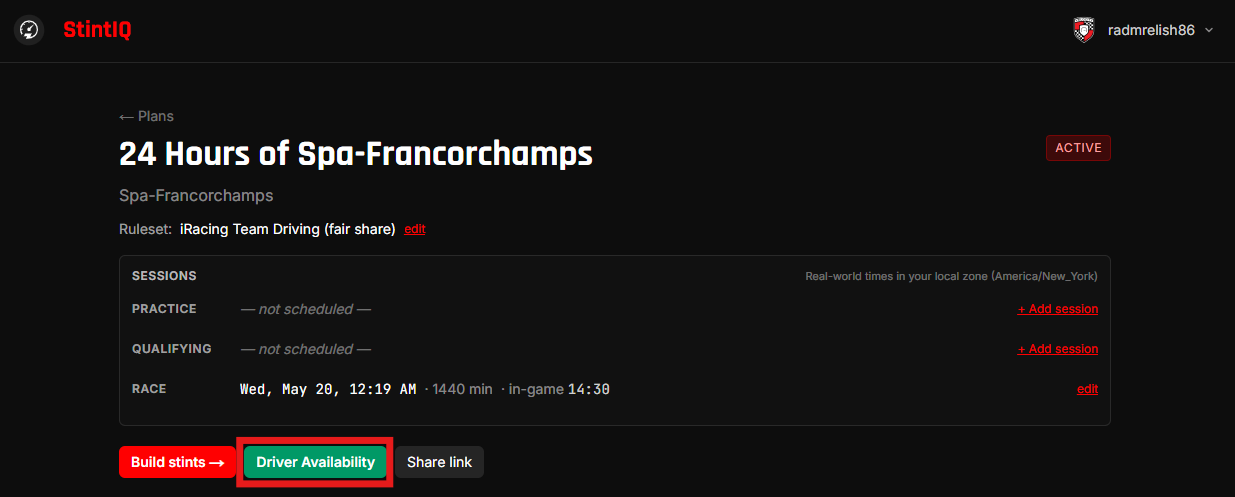
Find the signup grid
The team admin sends a link to the plan, or you find it via /teams/{team-slug}/plans and click into the plan detail page. Look for the Sign up for availability link near the roster.
Click the cells
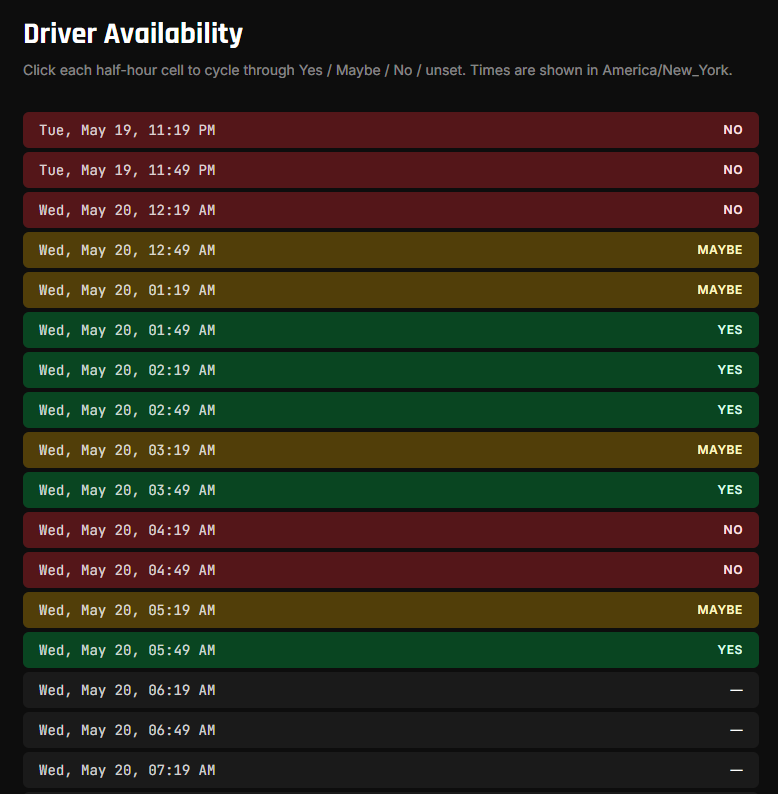
The grid shows 30-minute windows across the race weekend (and an hour before / after for buffer). Each cell starts unset. Click a cell to cycle through:
- Yes (green) — you can drive this window.
- Maybe (yellow) — you can drive but prefer not to.
- No (red) — you definitely can't.
- Click again to return to unset.
You can click-and-drag (or tap-and-drag on mobile) to set multiple cells at once.
Save
Click Save when you're done. You'll see a brief "Saved" flash, then land on the plan detail page — that's where your team admin watches the planning take shape.
If you change your mind later, come back to the same signup grid and update. Your previous saves are wiped when you save again (full grid replace, not merge), so make all your changes in one pass.
What your team admin sees
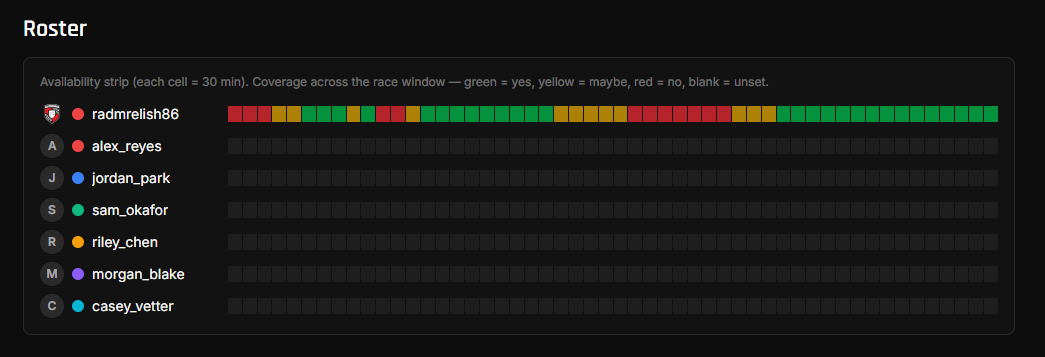
Your team admin sees a roster grid view with everyone's availability cells side-by-side. That's how they pick who to put in which stint — they assign primary drivers and backups based on who's available.
The signup grid uses your timezone for cell labels. So does your team admin's view of your row when they hover. No timezone confusion.
Next steps
- Race day on your phone — What to expect on race day.
- Stay alert (Discord DMs) — Link your Discord so the bot can DM you when you're up.
Have questions? Join our Discord →