
Install the StintIQ Telemetry Agent
The StintIQ Telemetry Agent is a small Windows app that records your team's StintIQ races while you drive or spot: who's in the car, laps, pit stops, and fuel or Le Mans Ultimate energy. Your team sees it live on the race-day page and the plan page, against the plan.
- It's a beta, and free. It records iRacing and Le Mans Ultimate. ACC is coming.
- It records only your team's StintIQ races. Any other session (hotlapping, public races, another night's practice) stays on your PC and nothing is sent.
- The more of your team runs it, the better. Every PC in the session sees the team's car, so teammates fill in for each other: a dropped connection or a paused PC doesn't leave a hole.
Download it
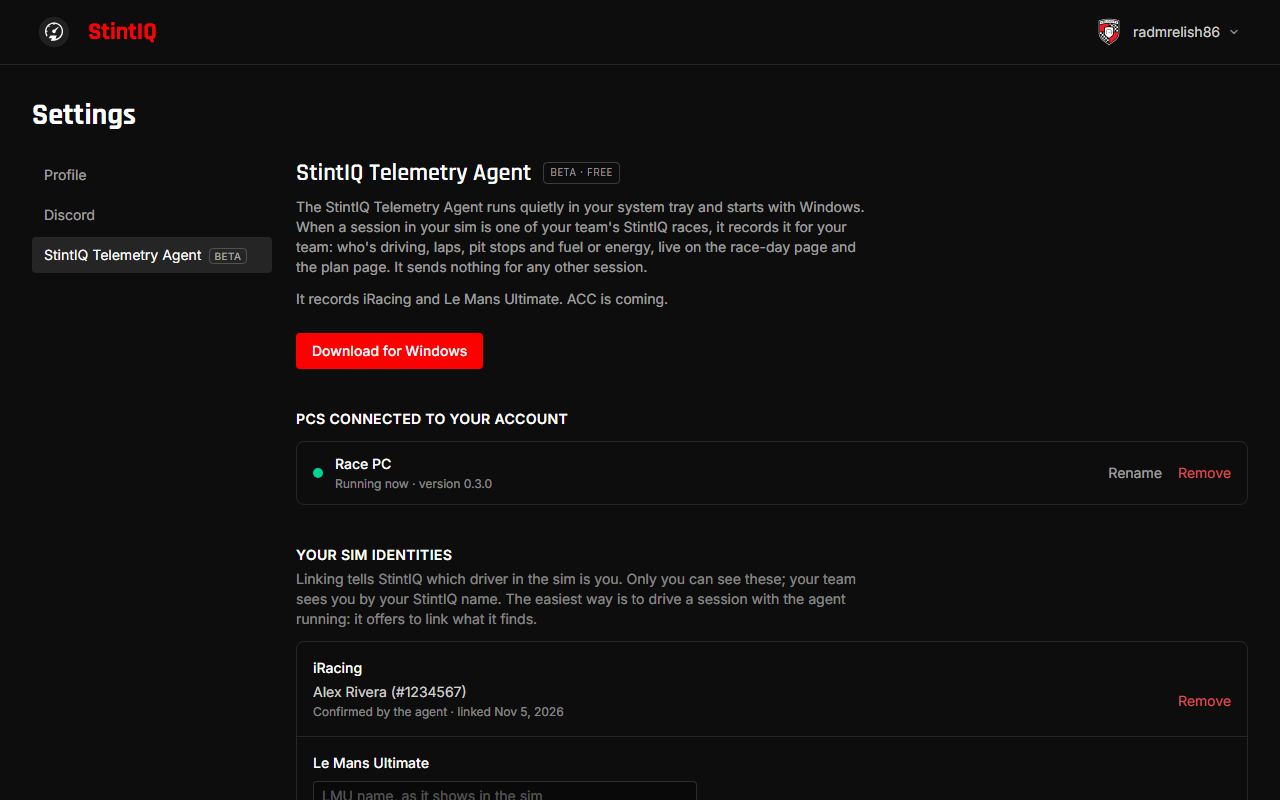
- On the StintIQ website, open Settings → StintIQ Telemetry Agent.
- Click Download for Windows and run
StintIQTelemetryAgent-beta-Setup.exe. - Windows may say "Windows protected your PC" with an unknown publisher: the beta isn't code-signed yet. Click More info, then Run anyway.
The installer puts a shortcut on your desktop and in the Start menu, and the agent starts.
Connect this PC
The first time it starts, the agent opens your browser on a Connect this PC to your StintIQ account? page, showing your PC's name. Sign in if you need to, then click Connect. The agent confirms with Connected to StintIQ.
- Connect didn't work? Click Connect didn't work? Show a code to type into StintIQ instead and type the code into the agent's window.
- The connect request expired? Choose Open StintIQ again in the agent for a fresh one.
Each PC you race on gets its own connection. They're all listed under PCs connected to your account in Settings, where you can rename or remove them.
The tray icon
The agent lives in the system tray by the clock, with no taskbar button. If you can't see it, click the ^ arrow by the clock and drag it next to the clock. Its colour says what it's doing:
| Colour | Meaning |
|---|---|
| Grey | Running, nothing to report (or Paused) |
| Blue | A sim session that isn't one of your team's races, e.g. "iRacing · Spa · Practice · you're driving". Nothing is sent |
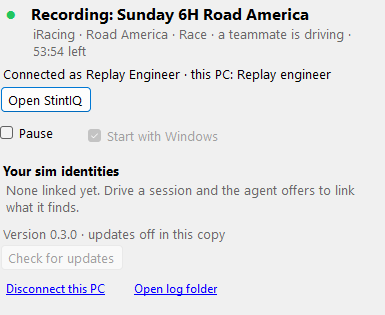
| Green | Recording one of your team's races: "Recording: VIRL 6H Road America" |
| Amber | Something needs you. Open the agent to see what; Troubleshooting has the fixes |
Click the icon to open the agent's window, or right-click it for the menu:
- Open StintIQ opens the website.
- Pause stops this PC reading your sims or sending anything. Your teammates' agents can still record your team's car. Click it again to resume.
- Start with Windows is on by default, so the agent is running when you sit down to race. Leave it on.
- Check for updates checks now. The agent also checks by itself, downloads quietly, and never installs an update while a sim is running.
- Disconnect this PC takes this PC off your account.
- Quit closes the agent until you start it again.
Removing it
- Remove a PC from the website under Settings → StintIQ Telemetry Agent: the agent on that PC stops working at once, and asks you to connect it again.
- Uninstall from Windows' Apps settings. It disconnects the PC and deletes everything the agent stored on it.
What it reads and sends
On your PC, the agent reads only what your sims make available to telemetry tools, plus the names of running programs (to notice a sim starting, never recorded or sent). It sends something only for a session that matches one of your team's StintIQ races. The full answer is in the FAQ and the Privacy Policy.
Next steps
- Link your sim identity, so your stints are recorded as you rather than "Unlinked driver".
- Race day with the agent: what you and your team see while the race runs.
Have questions? Join our Discord →