
Link your sim identity
Linking tells StintIQ which driver in the sim is you: your iRacing customer number, or your Le Mans Ultimate name. With it, the StintIQ Telemetry Agent records your stints as you. Without it, they show as "Unlinked driver", and nobody can tell from the recording who drove.
What you agree to
Linking needs your consent to let StintIQ record your driving in your team's StintIQ races and show it to your team.
- Only you see your linked identity. Your team sees you by your StintIQ name, never your customer number or sim name.
- During your team's races, your teammates' agents receive it so they can tell who's driving. They keep it only in memory and never show it.
- Your teammates see whether you've linked the race's sim (for example "not linked for iRacing" on race day), never the identity itself.
Link it from the agent (easiest)
Drive a session with the agent running. Once the session ends, the agent offers what it found: "StintIQ found your iRacing identity". Click the notification (or open the agent), read the consent line, and choose:
- Link to link it.
- Not now to leave it. The agent won't offer that identity again.
The agent never asks in the middle of a session.
Or type it on the website
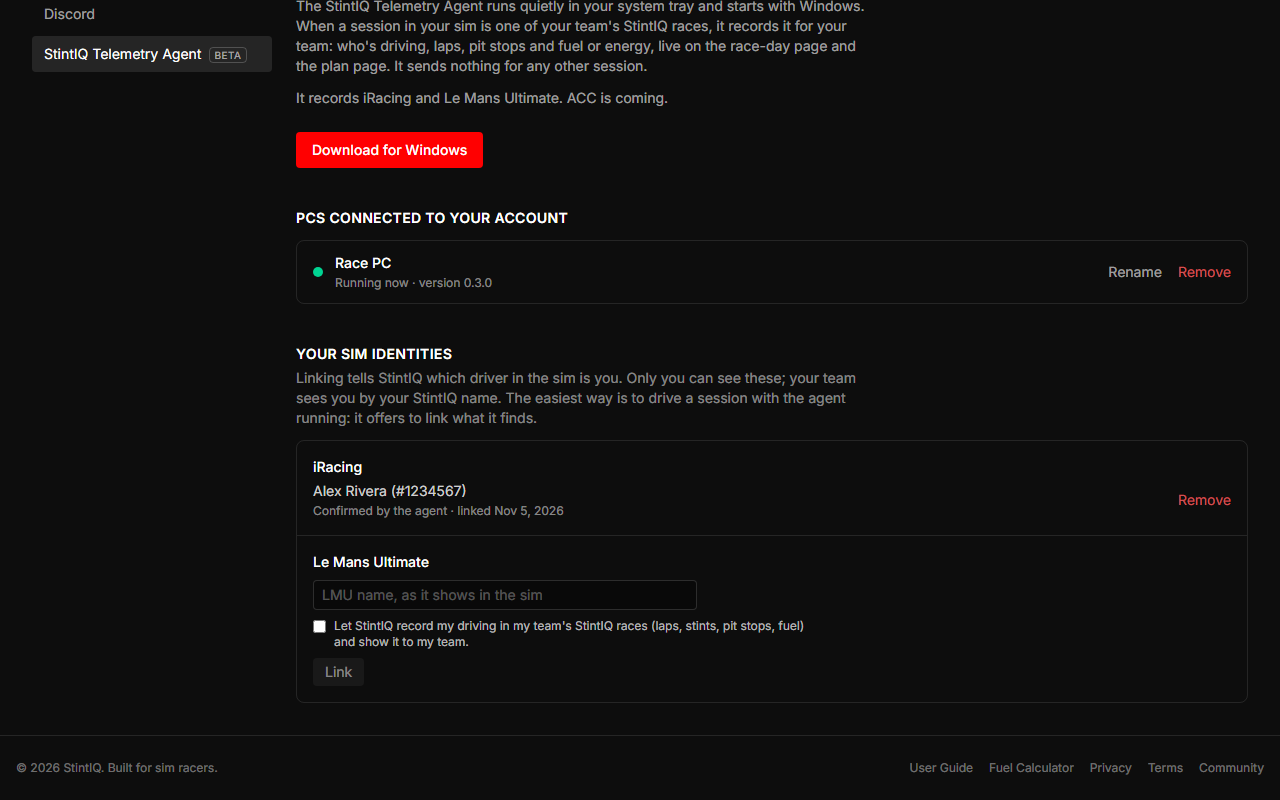
- Open Settings → StintIQ Telemetry Agent and scroll to Your sim identities.
- Type your iRacing customer number (your Customer ID on your iRacing account) or your Le Mans Ultimate name exactly as it shows in the sim.
- Tick the consent line and click Link.
If the agent later sees a different identity for you, it says so ("Your iRacing identity doesn't match StintIQ") so you can check it.
Remove it
Click Remove next to the identity, on the website or in the agent. StintIQ deletes the identity, keeps only the dates of your consent, and shows what was recorded of your driving as "Unlinked driver", in past races too.
Pause isn't Remove. Pausing the agent stops only that PC; your teammates' agents can still record the team's car while you drive. To stop StintIQ recording your driving at all, remove the link.
For captains: who isn't linked yet
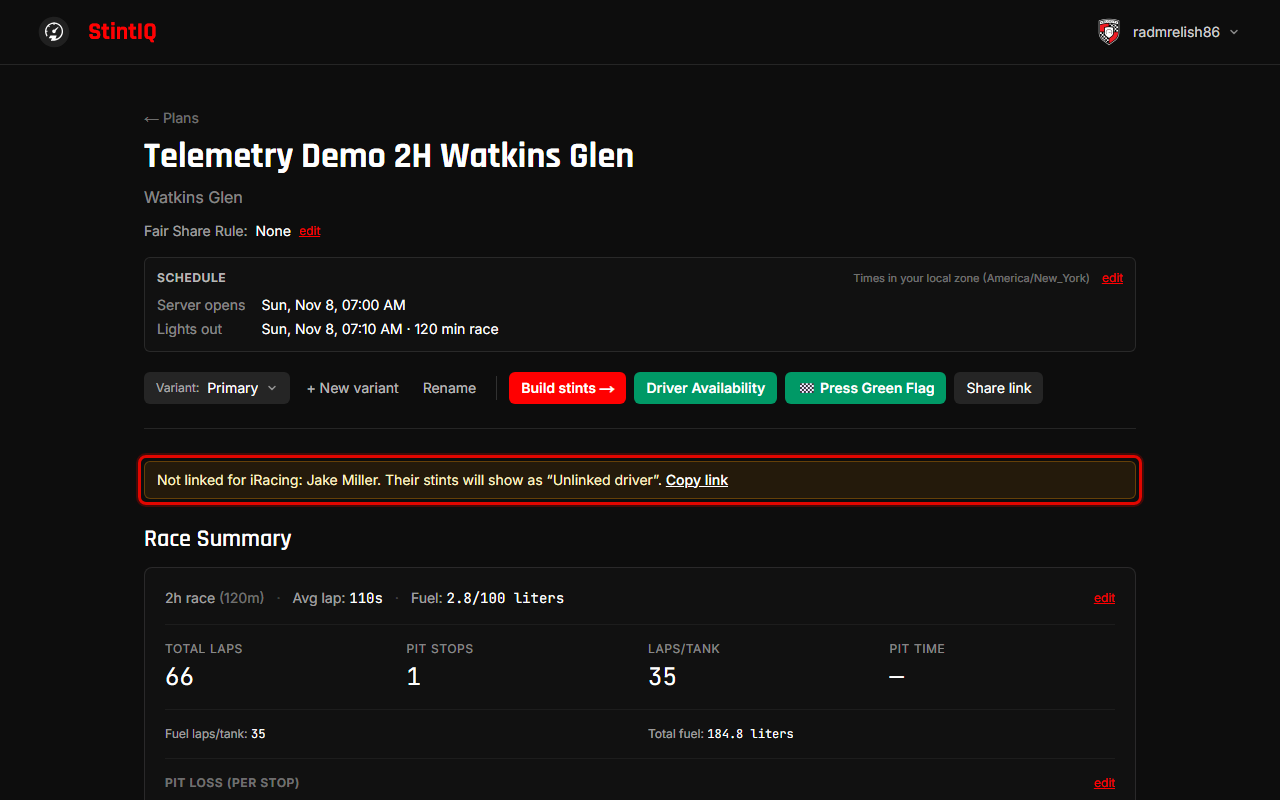
Once someone on the team runs the agent, the plan page tells captains and admins, while a race is ahead, who in a driving seat hasn't linked the race's sim:
Not linked for iRacing: Sam, Jake. Their stints will show as "Unlinked driver". Copy link
Copy link copies a link straight to the Your sim identities section: paste it to them on Discord. A driver who hasn't linked sees their own line instead, with Link it. The line goes away once everyone in a driving seat is linked.
Next steps
- Race day with the agent: what you and your team see while the race runs.
Have questions? Join our Discord →