Connect to Discord
StintIQ connects to your team's Discord server so we can send race-day push DMs (when you're up to drive, when your session opens, etc). One-time setup, then it just works.
This page covers connecting the team. For inviting the bot to your server, see Reference → Discord setup.
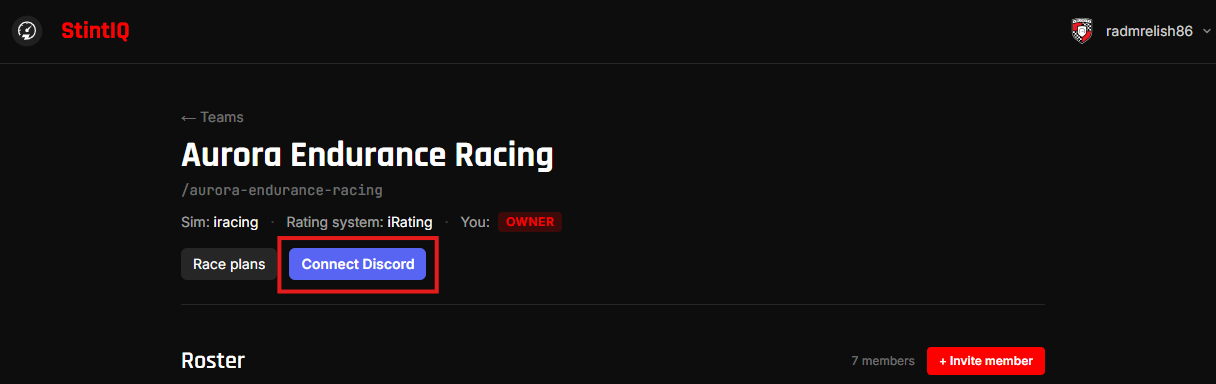
Click Connect Discord
From your team detail page, click Connect Discord (Owner or Admin only — drivers see a status badge, not the button).
You'll be sent to Discord to authorize StintIQ to see which servers you have admin rights on. This is a separate consent screen from the original sign-in — we need the guilds scope, which we don't ask for at sign-in.
Pick the team's guild
After authorization, you land back on StintIQ with a list of Discord servers where you have Owner, Administrator, or Manage Server permission. Pick the one your team uses.
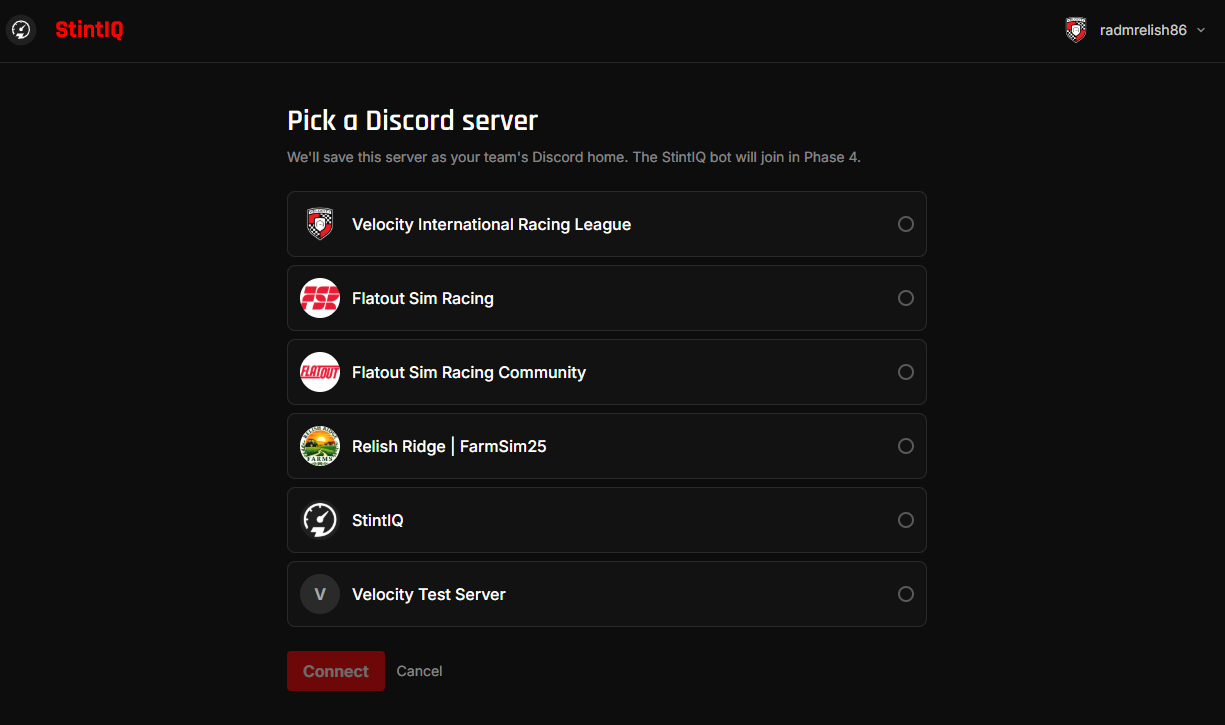
If the list is empty, you don't have enough permission on any server. The team's Discord server admin needs to give you Manage Server (or higher) before you can connect.
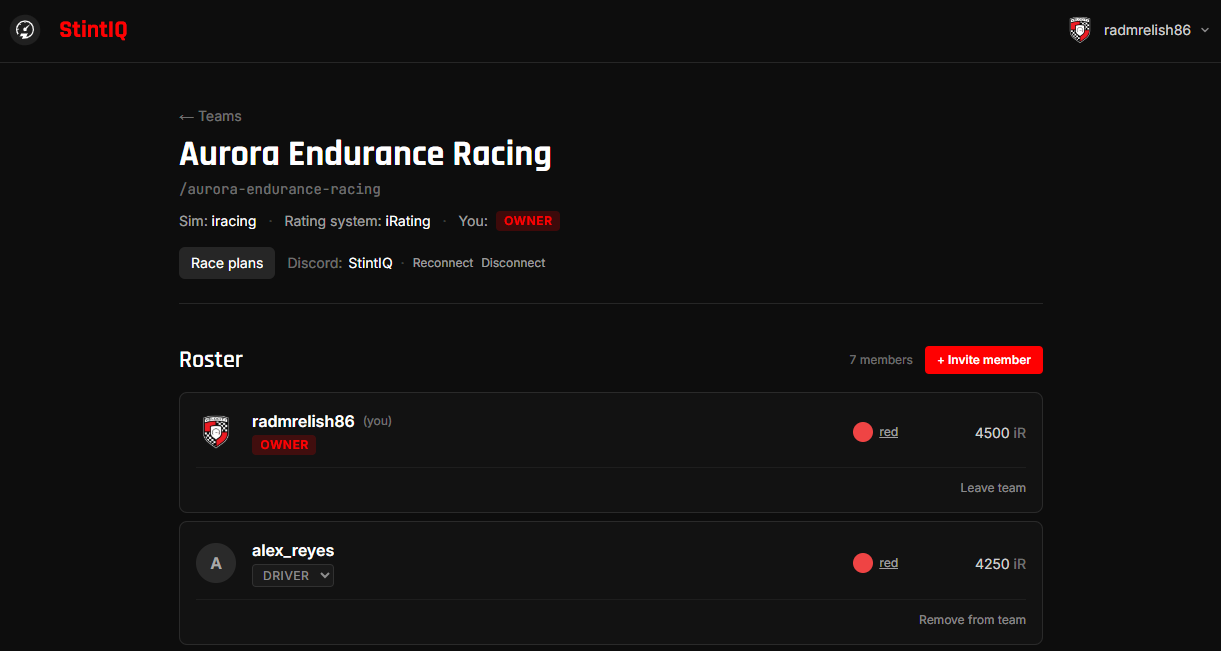
Click Connect on the guild you want. You'll land back on the team page with the status badge updated to Discord: {server name}.
What this does NOT do
Connecting the guild does not automatically invite the bot to your Discord server. You (or your server admin) still need to invite the StintIQ bot to the server. See Reference → Discord setup for the bot-invite URL and steps.
Drivers on your team also need to link their personal Discord account to StintIQ before they can receive DMs. They do this from /settings/discord (one-time per driver) — see Driver Guide → Stay alert (Discord DMs).
Reconnect or disconnect
- Reconnect to swap to a different Discord server (e.g., the team moved servers).
- Disconnect to remove the link. DMs stop working immediately; reconnecting re-enables them.
Next steps
- Run race day — Once Discord is connected and drivers have linked their accounts, race-day DMs flow automatically.
Have questions? Join our Discord →