Race day on your phone
On race day, your team admin shares a link to the live race-day view — looks like stintiq.app/race/{plan-id}. Open it on your phone or laptop (you'll need to be signed in to StintIQ). The page updates live as the race runs.
What you see
The page lays out vertically:
- Green Flag button — at the top, between the navigation and the countdown. Press it when the race actually goes green to lock the race timer at the real lights-out moment. Any team member can press it; admins can clear it if someone fat-fingers.
- Countdown — Primary line counts down to your next stint. A secondary line counts to race end.
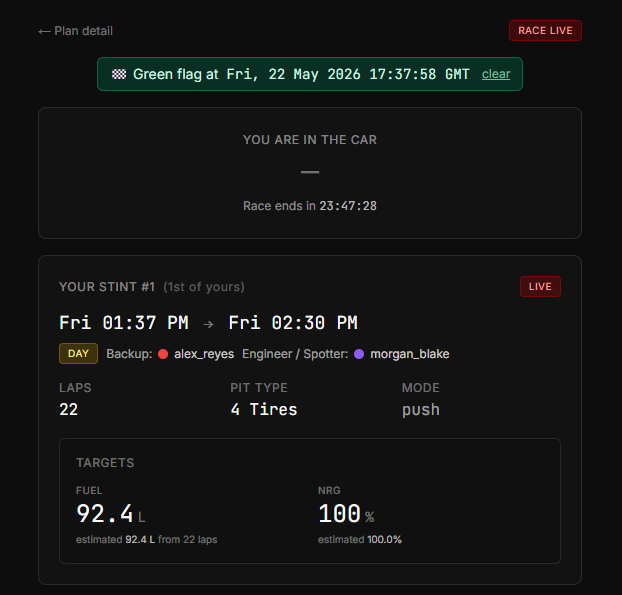
- Your stint card — what stint you're in next, what role (primary driver or backup), your fuel and NRG targets.
- Plan summary — race name, track, Event start (server opens) time in your timezone, duration. Green Flag time appears here once pressed.
- Lineup — quick roster strip with everyone color-coded and stint counts.
- View all stints → — opens a drawer showing the full timeline.
Pre-event
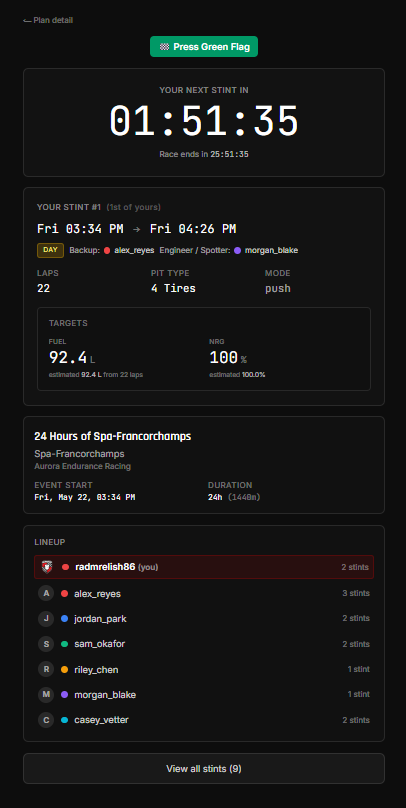
Before the server opens, the countdown shows "Server opens in HH:MM:SS." Your stint card shows your next stint — estimated start time in your timezone, lap range, fuel/NRG targets, and whether you're primary or backup.
Server is open, awaiting Green Flag
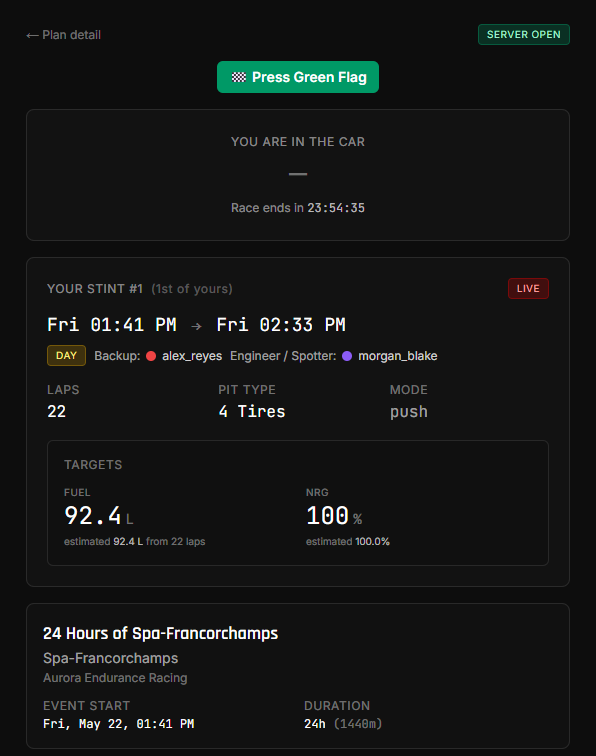
Once the captain's published Event start time passes, the status badge in the top corner flips to Server open, and the Green Flag button is ready to press. Stint start times are still estimates until someone presses Green Flag (formation laps and rolling starts mean the real lights-out moment usually drifts a few minutes from the published server-open time).
During the race
When the green flag drops, anyone on the team presses 🏁 Press Green Flag and confirms. The race timer locks at that moment, and every countdown re-anchors to the actual lights-out time.
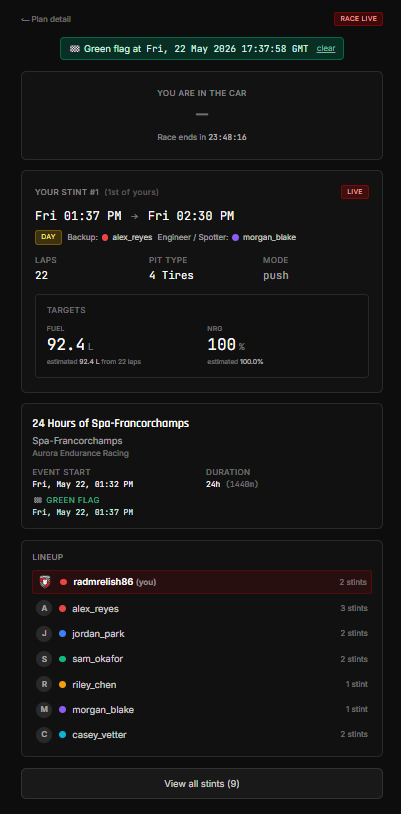
The countdown then ticks live. When your stint starts:
- The card switches to "You are in the car."
- The countdown swaps to a live in-car indicator.
When your stint ends and the next driver is in the seat, your card switches back to your next stint (or "No more stints for you" if you're done).
If you're not driving
If you're on the roster but not assigned to any stints, your stint card shows "You're not driving in this race." You still see the lineup + all-stints drawer + countdown.
If you're listed as backup, your stint card still appears with the role labeled clearly.
Post-race
When race time runs out:
- Countdown reads "Race ended."
- Your stint card reads "You're done — no more stints scheduled for you" (or "Race finished" if the race itself is over).
Tips
- Keep the page open during the race. Some browsers sleep — toggle the screen back on to wake it.
- Bookmark the URL on your phone for fast re-opening between sessions.
- The race-day view requires you to be signed in to StintIQ. The public share link your admin may also send (
stintiq.app/r/...) is a different surface — read-only, no login, but no live countdown.
Next steps
- Stay alert (Discord DMs) — Link your Discord so the StintIQ bot DMs you 30 / 15 / 5 minutes before your stint, in case you're not glued to the page.
Have questions? Join our Discord →